GIMP
- 3.2
- Rating
- 50.00K
- Installs
- $1.99
- Price

 Analysis by App-foxy
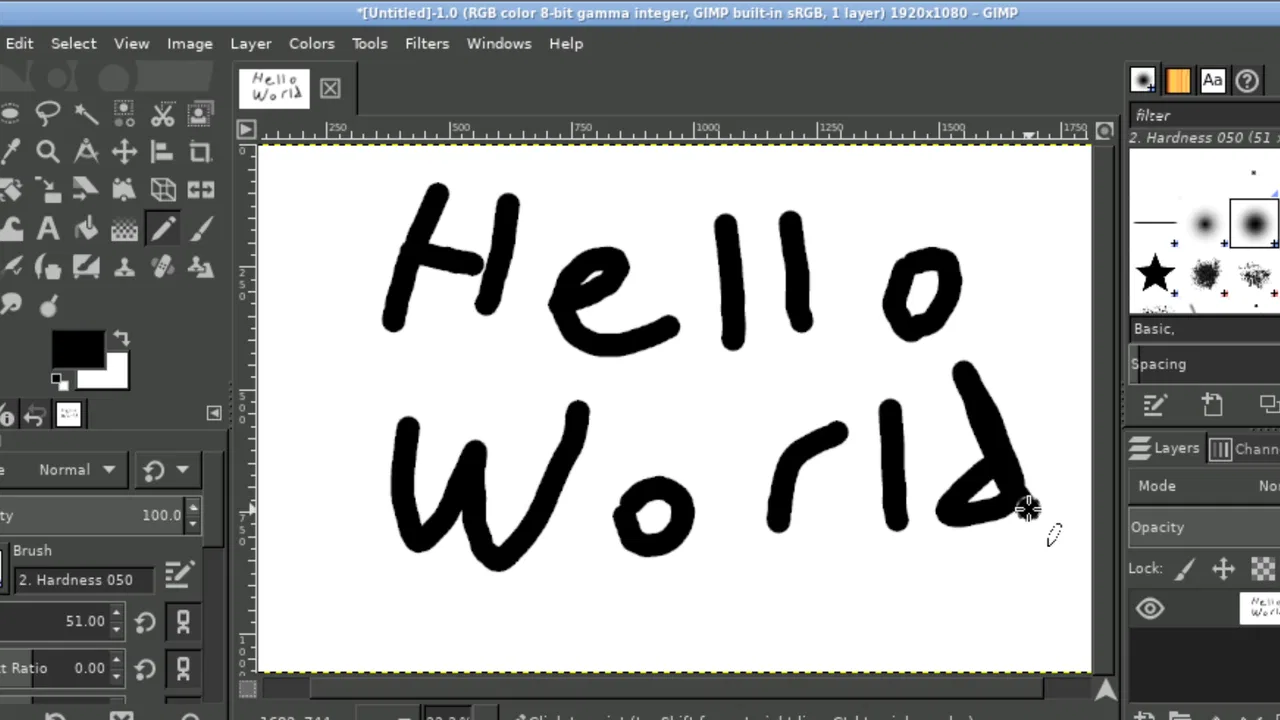
I approached GIMP as a serious image-editing tool rather than a quick filter app, and that distinction matters immediately. This is the mobile version of a well-known desktop-style editor, offered in the Art & Design category by UserLAnd Technologies. It is aimed at people who want to retouch photographs, build layered compositions, or create artwork with more control than a typical phone editor provides.
My first impression was that this is an ambitious choice for a mobile device. The appeal is not a polished, simplified workflow designed for one-tap results. Instead, the app tries to bring a deeper editing environment to Android. That can be rewarding if you already understand image-editing concepts, but it can also feel demanding if you only want to brighten a selfie or remove a small distraction from a holiday photo.
The app costs $1.99, carries an Everyone age rating, and requires Android 7.0 or later. Its current version is 26.05.29, while the app itself was released on Apr 6, 2022. Those details place it in an interesting position: it is accessible to a broad range of Android users, but its workflow is much closer to a desktop creative application than to the lightweight editors most people keep on their phones.
You May Also Like

 Blood Strike: 2.5 Anniversary
Blood Strike’s Loadouts Turn Every Drop Into a Tactical Gamble
A close look at Blood Strike’s custom loadouts: how fast access to signature weapons reshapes its battle royale rhythm, rewards preparation, and narrows the gap between fights.

 Pandora - Music & Podcasts
Pandora’s Music Is Easy to Start, but Harder to Recover
Pandora’s strength is its low-effort path from a seed to a station. Its weak spot is how much confidence it asks you to place in connection, setup, and quiet recovery.

 8 Ball Pool
8 Ball Pool Is Built on Rivalries, Rematches, and Routine
A close look at the rivalries, rematches, shared routines, and unanswered safety questions that turn a quick pool match into a persistent mobile community.

 Samsung Music
Samsung Music’s Quiet Strength Is Playing What You Already Own
Its reach comes less from spectacle than from dependable access to a personal library. That simplicity is both the app’s strongest retention engine and its ceiling.

 AccuWeather: Weather Radar
AccuWeather Review: A Quick, Clear Forecast for Everyday Decisions
For everyday plans, the best forecast is the one you can understand quickly. AccuWeather makes rain timing, radar, and local conditions easy to act on, with a few trade-offs.

 Hill Climb Racing
Why Hill Climb Racing Still Turns Crashes Into One More Run
A tiny car, a bumpy hill and one more upgrade: Hill Climb Racing keeps resurfacing because its simple chaos makes every near-miss feel personal.
More From Our News Desk



How GIMP feels in everyday use
I find it helpful to think about GIMP as a shared creative workspace, not a casual camera app: one person might use it to clean up a scanned drawing while another prepares a simple event graphic. That kind of handoff works best when each person starts from a separate copy and keeps the original image intact. The next question is how to set sensible boundaries on a device several people use.
A desktop-minded editor on a small screen
GIMP makes the most sense when I need to work carefully rather than quickly. A normal phone editor usually puts the most common adjustments in front of me: crop, exposure, contrast, color, and perhaps a few decorative effects. Here, the experience is more about assembling an image and controlling individual decisions. That gives me room to work, but it also means I spend more time learning where things are and how the editing process is organized.
The interface can feel crowded on a phone, especially when the image, tools, panels, and controls all compete for limited space. A larger screen makes a noticeable difference, and a tablet-sized display is a more comfortable match for this kind of application. I would also recommend using the app when I have time to concentrate, rather than opening it while walking or trying to finish an edit in a few seconds.
That friction is not automatically a flaw. In my experience, complicated tools become useful once their structure starts to make sense. The important question is whether I want control badly enough to accept a slower process. If the answer is yes, GIMP offers more creative headroom than most casual mobile editors. If the answer is no, a simpler alternative will probably feel better.
Who will get the most from it
I see three especially good audiences for this app. The first is a learner who wants to understand real image-editing ideas instead of relying only on automatic enhancements. Working with layers, selections, masks, and separate adjustments teaches a more transferable way of thinking about images.
The second is a designer who occasionally needs to prepare graphics directly on an Android device. A quick social image, a product mock-up, a cropped illustration, or a composite made from several pictures can all benefit from a tool that does not force every task into a preset template.
The third is someone who already uses GIMP or a similar desktop editor and wants a familiar kind of environment away from a computer. The mobile experience is not identical to sitting at a workstation, but the underlying approach feels more suitable for deliberate editing than for casual photo decoration.
I would be more hesitant to recommend it to a person who mainly wants instant portrait improvements, automatic background removal, or ready-made social-media layouts. Those users may spend more time navigating the editor than improving their pictures. GIMP is also not my first choice for someone who expects every operation to be obvious without reading, experimenting, or adjusting to a desktop-style workflow.
A realistic phone-based workflow
Imagine I take a photograph of a handmade poster for a small community event. The picture has a slight perspective problem, uneven lighting, and a distracting object near one edge. With a basic editor, I might crop it, raise the brightness, and accept the result. With GIMP, I can treat the job as a small design project: correct the framing, make a separate copy of the image before major changes, work on the unwanted object without permanently altering the original, and prepare a cleaner version for sharing.
The extra steps are worthwhile when the image matters. I can keep the original untouched, test an adjustment, and return to an earlier stage instead of trying to remember every change. That non-destructive mindset is one of the strongest reasons to use a more advanced editor on a phone. It turns a rushed correction into a repeatable workflow.
There is a practical trade-off, though. Handling several image elements on a small touchscreen is less comfortable than using a mouse and a large monitor. Fine selections can require patience, and moving between panels may interrupt the visual flow. I would use the app for a focused edit or a modest composition, but I would not choose a phone as my main workspace for a large, highly detailed project.
Useful techniques beyond the basic controls
One of the most valuable habits is to create a working copy before experimenting. This sounds obvious, but it changes how freely I edit. Instead of worrying that a strong color adjustment or an aggressive cleanup will ruin the source, I can try it, compare the result, and discard the copy if it does not work.
A second useful approach is to separate tasks by purpose. I prefer keeping retouching, color work, text, and decorative elements on their own layers whenever the project allows it. This makes later corrections much easier. If the text needs to move, I do not have to rebuild the background. If the color feels too strong, I can revisit that part without disturbing the composition.
A third tip is to zoom in only for precision work and then zoom back out regularly. On a phone, it is easy to make a tiny area look perfect while losing sight of the whole image. I have found that checking the composition at a smaller view helps prevent over-editing, especially around edges, faces, and objects that need to blend naturally.
Selections also deserve a deliberate approach. Rather than trying to isolate a complicated object in one attempt, I would make a rough selection first, inspect the boundary, and refine only the areas that need attention. That is slower than tapping an automatic tool in a streamlined editor, but it gives me better control when the subject has an irregular outline or a similar color to the background.
How it compares with familiar alternatives
Compared with a standard gallery editor, GIMP is far more flexible but much less immediate. Gallery tools are excellent for correcting a picture before sending it to someone. They normally win when speed, simplicity, and a clean touch interface matter most. GIMP wins when I need to combine images, preserve editable parts, or make a correction that cannot be handled by a single slider.
Compared with template-focused design apps, GIMP gives me more freedom to begin with a blank canvas and build the result myself. Template apps are often better for invitations, promotional posts, and layouts that need to look finished quickly. Their guided structure helps non-designers move fast. GIMP is better when the design does not fit a preset and I want to decide the composition from scratch.
Compared with professional desktop editors, the mobile version is naturally constrained by the screen and touch controls. A desktop remains the better environment for extensive retouching, large compositions, and long sessions. Still, GIMP has a useful role when I am away from my computer and need more than a basic crop or filter.
That comparison leads to a simple recommendation: choose this app for control and flexibility, not for convenience. If I value a short learning curve above all else, another editor is likely a better match. If I want an editing environment that encourages careful decisions and can grow with my skills, GIMP is more compelling.
What the current version means for existing users
The current version, 26.05.29, is the detail I would check before installing or updating. For an existing user, the most sensible expectation is continuity with the app’s established purpose: retouching photographs and creating or editing images in a more capable environment. I would approach an update as a chance to verify that my usual projects still open and behave as expected, rather than assuming that a version number alone changes the entire experience.
Existing users should keep their working habits organized. Saving source images separately, maintaining clear project copies, and exporting a final version for sharing are good practices here because a mobile editing session can be interrupted more easily than a desktop session. I would also avoid beginning an important deadline-driven project immediately after an update. A short test with a duplicate file is a safer way to confirm that the tools I rely on still fit my workflow.
The app’s evolution is best understood through its continued presence as a paid, focused editor rather than as a casual photo utility. The release date of Apr 6, 2022, gives the product a defined history, while the current version shows that the application has continued to move forward. I would separate that confirmed progression from assumptions about future features: a newer version is encouraging, but it is not a promise that every desktop capability or requested mobile improvement will appear next.
Where the experience still has gaps
The biggest gap is comfort. A phone can display an image, but it does not provide the same working area as a desktop monitor. Panels and controls compete with the canvas, and precision work can become tiring. This is especially noticeable when I am trying to inspect small details or manage several elements at once.
The second gap is approachability. GIMP rewards curiosity, but it does not always feel like an app designed to teach itself. A beginner may understand what they want to achieve without knowing which tool or sequence will get them there. That can lead to trial and error, and some users will interpret that as unnecessary complexity.
The third gap is speed for routine tasks. If all I need is a quick crop, a modest exposure correction, or a resized image, opening a full editor can feel excessive. The app becomes more justified as the job becomes more involved. For a one-minute correction, I would usually choose the faster tool already available on the phone.
There is also a question of device fit. Android 7.0 compatibility makes the app available to many users, but compatibility alone does not guarantee a comfortable experience on every handset. Screen size, input precision, and the way I hold the device all influence how manageable the interface feels. I would test it with a non-critical image first and decide from that hands-on experience.
Who should skip it
I would skip GIMP if I want a guided, polished flow that turns a photo into a finished post with almost no decisions. I would also skip it if I rarely edit images and do not want to learn concepts such as layers or selections. Paying $1.99 for a powerful tool is reasonable only when I expect to use that power.
It may also be the wrong choice for someone whose work depends on a large desktop canvas, highly precise pointer control, or a long sequence of professional edits. In that situation, a desktop installation is the more sensible primary workspace, with the mobile app serving only as a secondary option if its workflow fits.
On the other hand, I would not dismiss it simply because the interface feels dense at first. The learning curve is part of the exchange. After I stop expecting it to behave like a filter app, its structure becomes easier to appreciate. The app is most rewarding for people willing to trade instant results for ownership of the editing process.
What I would watch next
For future development, I would pay attention to how comfortably the app handles the tension between advanced capability and mobile usability. The strongest improvements would be the ones that make touch-based editing clearer without stripping away the control that makes GIMP worthwhile. Better organization, easier navigation, and a smoother way to inspect detailed work would matter more to me than decorative additions.
I would also watch how well the application serves two different groups: experienced users who want a capable mobile companion and beginners who need a gentler starting point. Those audiences do not require identical interfaces. The challenge is to preserve depth while making the first successful edit less intimidating.
For current users, the practical approach is to keep projects tidy, update carefully, and judge each new version by the workflows that matter personally. I would not install an update expecting a complete redesign based only on the version label. I would instead look for improvements in reliability, touch interaction, and the handling of real editing sessions.
My overall recommendation
GIMP is an unusual recommendation for Android because its strongest quality is also its main obstacle. It brings a serious, flexible image-editing mindset to a device that is usually associated with quick edits. I appreciate that ambition, and I think the app can be genuinely useful for retouching, compositing, and learning more disciplined creative workflows.
My advice is to try it with a small but meaningful project: clean up a scanned drawing, prepare a layered event graphic, or retouch a photograph where ordinary sliders are not enough. Start with a duplicate, keep the parts of the image separated when possible, and resist the temptation to judge the app after only a few seconds. Those habits reveal its strengths much faster than randomly tapping through tools.
The average rating is 3.2 from around 1.7 thousand ratings, and the app has passed 50 thousand installs. I read those figures as a sign of a specialized product rather than a universal phone essential. It has found an audience, but it is clearly not trying to be the easiest editor for everyone.
In the end, I would recommend GIMP to patient Android users who want more control than a typical mobile editor provides and are comfortable learning a desktop-inspired workflow. I would point casual photographers toward a simpler alternative, and I would tell professional desktop users to treat this as a companion rather than a full replacement. For the right person, the $1.99 purchase offers a focused creative tool; for everyone else, its complexity may outweigh its flexibility.
FAQs for GIMP
01What is GIMP, and what can I use it for?
GIMP, short for GNU Image Manipulation Program, is a free and open-source image editor for creating, retouching, and enhancing digital images. It supports tasks such as photo correction, background removal, graphic design, painting, cropping, resizing, and format conversion. It is especially useful for users who want many professional editing tools without paying for a subscription, although its large feature set may take time to learn.
02Is GIMP completely free to download and use?
Yes, GIMP is distributed as free and open-source software, so you can download and use it without purchasing a license or subscribing to a monthly plan. There are no standard premium tools locked behind an in-app payment system. However, you should download it from the official GIMP website or a trusted software repository, because unofficial download pages may bundle unwanted programs or modified installers.
03Does GIMP work on Android and iPhone?
GIMP is primarily a desktop application and officially supports operating systems such as Windows, macOS, and Linux. It does not offer a standard official mobile app for Android or iPhone comparable to its desktop version. Be cautious when searching mobile app stores, since similarly named applications may be unrelated. Mobile users may need to use an alternative image editor or access GIMP remotely through a computer.
04Is GIMP suitable for beginners?
GIMP can be used by beginners, but it is not always immediately simple because the interface includes layers, masks, paths, selections, filters, brushes, and many adjustable settings. Basic edits such as cropping, resizing, and color correction are relatively easy to learn, while advanced compositing and retouching require practice. Tutorials, keyboard shortcuts, and community guides make the learning process much more manageable.
05What file formats does GIMP support, and can it replace Photoshop?
GIMP supports common formats including JPEG, PNG, GIF, TIFF, BMP, and its native XCF project format, which preserves layers and editable elements. It can open and export many Photoshop PSD files, although compatibility may vary with complex effects, smart objects, fonts, or advanced features. For many photo-editing and graphic-design tasks, GIMP is a strong free alternative, but professional workflows may still depend on Photoshop-specific tools and integrations.
Pros
- Powerful layer
- mask
- and selection tools for detailed image editing.
- Supports many file formats
- including PSD
- PNG
- JPEG
- TIFF
- and GIF.
- Highly customizable interface with dockable panels and keyboard shortcuts.
- Extensive plugin and script support adds advanced editing capabilities.
- Runs on Windows
- macOS
- and Linux without subscription costs.
Cons
- The interface can feel dated and overwhelming for beginners.
- Some advanced tools require more manual setup than in commercial editors.
- Text editing is less convenient than in dedicated design applications.
- Large projects may become slow when using many layers and filters.
- Official mobile support is unavailable
- limiting use on Android and iOS.

GIMP
Gallery